Using Orek
Learn the composer, prompt flow, approvals, pickers, workflows, and conversation controls in Orek.
Orek’s TUI is its interactive terminal interface. You write requests in the composer at the bottom, follow activity in the conversation above it, and open pickers or detail panes when you need more control.
Open a project
Open your shell in the project directory and start Orek:
In your shell
orekThe interface opens right away, and startup messages report when your provider
and code index are ready. If setup is incomplete, use /setup to open the
wizard inside Orek. Saving returns you to the composer with the new settings
applied. See the Quickstart for installation and provider setup.
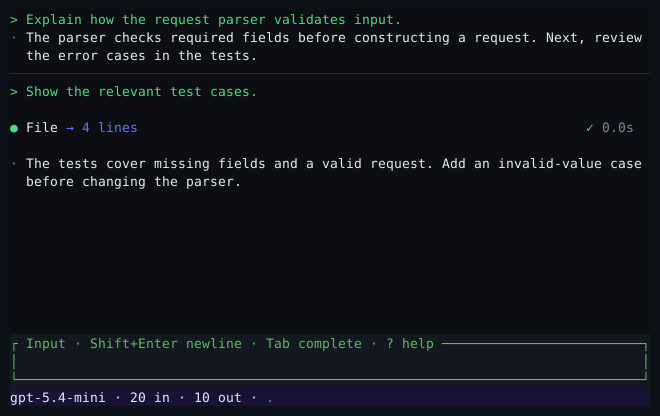
The interactive TUI showing project status, active model, and token usage.
Choose a way to work
| When you want to… | Use… |
|---|---|
| Ask about code or select exact context | Add context and Find and explore code |
| Review an approach before edits | Plan and track work |
| Repeat a structured task with different inputs | Workflows |
| Delegate part of a task | Subagents |
| Keep a long conversation usable | Manage context |
| Tune model instructions and tool access | Model instructions and tools |
| Connect tools from your own services | MCP servers |
| Adjust saved defaults and permissions | Configuration and Permissions and security |
| Investigate model choices, latency, or tool results | Troubleshooting & diagnostics |
Write a request
Type your request in the composer and press Enter:
In Orek · prompt
Explain how this project is organized. Refer to the files you inspect.- Ctrl+J inserts a newline. Shift+Enter also works in terminals that report it.
- Type / to discover commands and Tab to accept a completion.
- Type @ to choose file or symbol context.
- Type $ to choose a skill.
- Use Ctrl+R to search input history. Alt+Up/Down recalls earlier drafts.
- Use Alt+O to edit a draft in the editor configured through
VISUALorEDITOR. - Use Ctrl+V or Ctrl+Alt+V to paste an image from the clipboard as an
[Image #N]placeholder. Deleting the placeholder removes the attachment.
Image attachments require a vision-capable model. If a selected or fallback model does not support images before any tools run, Orek returns the prompt and attachments to the composer so you can pick another model.
What happens after you press Enter
- Orek prepares context. It reads the files and symbols you named with
@. When automatic retrieval is on and the code index is ready, it also searches the index, then removes duplicates and keeps only what fits the space set aside for context. - Orek chooses a model. It uses your pinned model or matches the prompt against routing rules and task complexity.
- The provider receives the request. Orek sends the active conversation and streams the model’s response.
- Tools run within your settings. Orek checks your execution and approval settings, runs the tools you permit, and returns their results to the model.
- History stays available. Orek saves the conversation so you can resume it, and summarizes earlier turns when the conversation grows too long.
- You inspect the result. Use
/detailfor tool output,/contextfor selected context, and/routingfor the applied model choice.
Subagents and workflow steps use this same loop in the session’s workspace and share its tools and approval settings.
Run your own shell command
From the main thread while idle, start a line with ! (for example, ! git status) and press Enter to run a command directly in your native shell
without starting a model turn. Orek records the command and its redacted output
in the conversation for your next prompt.
! commands execute immediately—even in Plan mode—under your current OS sandbox setting (Ctrl+C stops a running command). The command appears in the transcript right away and shows its latest output while it runs; the final result replaces it when it finishes. See the shell command reference for details.
Choose a model
Open the model picker:
In Orek · command
/modelChoose a configured model and press Enter. Where supported, Left/Right
changes reasoning effort. Esc closes the picker. /model auto returns to
automatic model selection; Model routing explains saved
preferences.
After you switch models in a conversation, the line under your next message names the new model and what happened to the earlier model’s reasoning; see Switching models and providers.
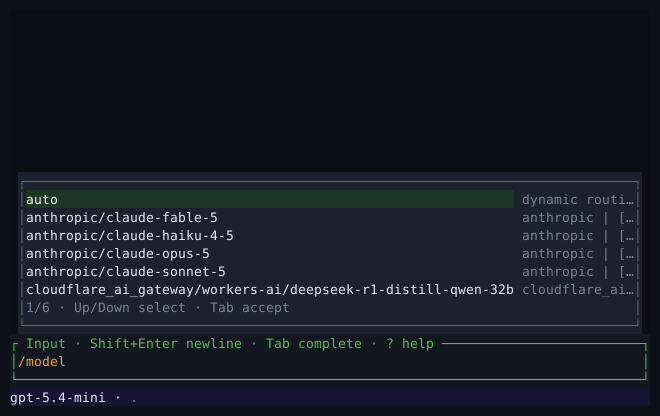
Selecting a model and reasoning effort with the /model picker.
Inspect activity and results
Tool cards show what Orek requested and the result it received. A result can include a diff, command output, or a failure that needs your attention. Open the latest tool result:
In Orek · command
/detail- Alt+P / Alt+N focuses a tool card, Enter (or Space / o) expands or folds its full output inline, Alt+Enter (or Ctrl+T /
/detail list) opens the full-width detail reader, and Esc returns. /collapsefolds or restores inline previews across tool and agent cards without changing model context./context [show|raw|summary|breakdown]inspects what reaches the model, and/usageshows token and cost estimates.
Review an approval
Read the requested action and any diff before approving; the default selection is conservative, so do not assume Enter approves. Use Tab, Shift+Tab, or the arrow keys to choose an option and Enter to confirm. Esc denies a tool request or stays in Plan mode.
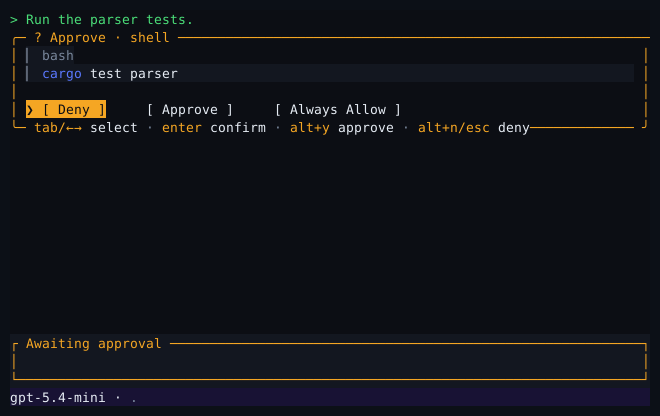
Reviewing a proposed shell command before approving or rejecting execution.
An Always allow choice covers only that tool, not every tool. Orek saves it in your user configuration for this project, not in the project. See Permissions and security.
When several requests wait at once, for example from tool calls the model asked for together or from subagents, Orek shows them one at a time and opens the next when you answer; see Several tool calls at once.
Respond while Orek works
You can submit another request while Orek works. Use /steer (or send ordinary
text without images) to give guidance that reaches the model once the current
group of tool calls finishes:
In Orek · command
/steer Focus on the parser first; leave the UI unchanged.Pending items appear in the tray above the composer (Pending:N on compact
screens) until delivery begins:
| Input or shortcut | Behavior while a turn is running |
|---|---|
/steer <text> or plain text |
Delivered after the current group of tool calls finishes (does not interrupt a running tool or undo edits). If the provider is still running its own web search or fetch in that step, delivery waits for the next group. If the turn finishes first, it starts the next turn. |
Prompt with images or queued /command |
Waits in the pending tray until the active turn ends. (/steer delivers only text; attached images stay available if recalled.) |
| Shift+Left or Alt+Up (empty composer) | Recalls the latest eligible pending input into the composer for editing, including attached images and $skill mentions. |
| Shift+Delete (empty composer) | Discards the latest eligible pending input while work continues. |
| Ctrl+C | Cancels active work in the selected thread (or clears composer input when idle). Does not revert file edits. See Subagents when viewing a subagent’s conversation. |
Run a workflow
A workflow reuses saved steps for a new task. Inside Orek, browse the available workflows:
In Orek · command
/workflow listFor example, ask the built-in code review workflow to inspect a folder in your
project, replacing src/auth with your target:
In Orek · command
/workflow run code_audit src/authYou can also begin a message with %code_audit src/auth. These requests ask the
agent to run the workflow in the selected conversation. Look for the
run_workflow tool card and inspect progress with /workflows or /workflow status.
See Workflows to save your own templates, pass inputs, choose step order, and approve, pause, resume, or cancel a run.
Return to a conversation
| Command | Effect |
|---|---|
/sessions (/resume) |
Search and resume saved sessions for the current project |
/copy [n] (/yank) |
Copy fenced code block n (default 1), searching newest messages first and each message’s blocks in displayed order |
/undo |
Remove the latest exchange from the display only; model history, saved history, and file edits remain unchanged |
/clear / /quit |
Start a fresh session or exit (stops subagents and background jobs, pauses workflows, and keeps file edits) |
See Manage sessions.
Find help
In Orek · command
/helpIn Orek · command
/keys listBoth open a full-width reader above the composer (/keys alone opens the keybinding editor). Use PageUp/PageDown to read it and Esc (or Ctrl+T) to return.
Unknown commands stay local and suggest nearby names. If a provider or index
fails, open /doctor and /log, then follow Troubleshooting & diagnostics.
The TUI reference lists exact commands and aliases. Examples labeled In your shell belong outside the composer.