Manage sessions
Find a previous conversation, continue its work, explore a fork, or export its recorded history.
Orek saves conversations so you can return to a task later. Start Orek in the
same project, then open the session picker (/sessions, or its alias /resume):
In Orek · command
/sessions
Listing sessions
Navigate with Up/Down or j/k, or press / to filter by opening prompt, model, or session ID (Enter or Esc returns to navigation; Esc clears an active filter before closing). Use s to change sort order, o to toggle density for this session (Ctrl+O toggles it and saves it as your default), Space or i (Ctrl+E) to toggle an inline preview of recent messages, t (Ctrl+T) to read the full transcript, and c to copy the orek chat --resume <id> command.
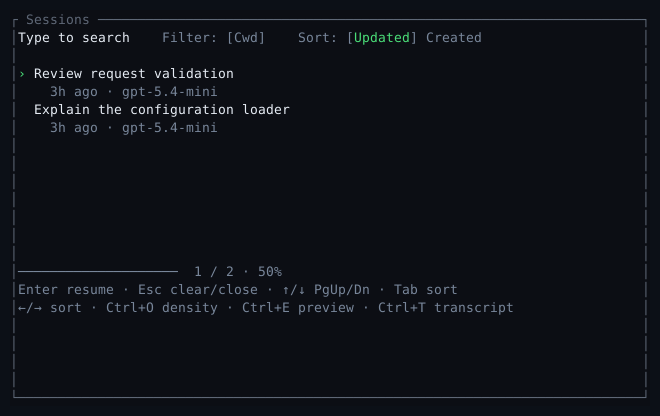
Resuming a saved conversation with the /resume picker.
Resuming a conversation
Select an eligible session and press Enter to resume it in place. Check the selected task before confirming. If a session is busy or cannot be restored, read the inline error; the outgoing conversation is preserved on failure.
Orek restores the recorded messages, task checklist, and saved request costs (later price changes do not reprice past turns).
Sessions saved by earlier Orek versions with Mistral’s built-in models, including their web searches, still open. Orek sends their saved search results to the model as plain text with citations.
To resume directly when launching from your shell:
In your shell
orek chat --continueOr use orek chat --resume <ID> for a particular session. For scripts,
orek session list prints saved sessions.
Resume a subagent’s work
To include saved subagent transcripts in the listing:
In your shell
orek session list --include-childrenA subagent belongs to the session that started it and cannot be resumed directly as your main conversation. Resume that session, which brings its subagents back (Subagents in a resumed session), or fork the subagent’s transcript into an independent session. Every subagent’s transcript is saved; see Saved subagent transcripts.
Inspecting recorded history
In your shell
orek session show <ID>This prints the message count and sequence of message roles. Use the picker’s preview or full transcript (t) to read conversation content, or export the session for inspection outside Orek.
Recorded history shows what Orek saved. It is not a fresh check of your working directory, a command’s current status, or a remote service’s state.
Forking a session
Forking a recorded session is a shell operation; there is no TUI /fork command.
Use a fork to try a different approach while keeping the source conversation:
In your shell
orek session fork <ID> --title "Alternative approach"The title is optional:
In your shell
orek session fork <ID>Orek prints a new session ID. Resume that ID to continue from the copied history:
In your shell
orek chat --resume <NEW_ID>A session fork does not create a Git branch or separate working directory. The new conversation can still edit the same project files.
The source session file (<id>.jsonl) stays unchanged. The fork starts with no usage totals, task checklist, or request records of its own. Subagent transcripts stay with the source session; the copied conversation keeps any subagent results already in it. Its saved agents and workflow runs stay with the source too, and the fork opens with a notice telling the model so, because earlier messages may still name those runs.
A fork keeps the source’s model switch records, so a copy resumed on the same model keeps the reasoning replay setting it was using. Resuming on another model counts as a switch and uses the setting of the Orek process that resumes it. To compare the two settings on the same history, fork where you would switch models, then resume the source and the fork on the new model, one with each setting:
In your shell
orek chat --resume <ID> --model <MODEL> --reasoning-replay dropIn your shell
orek chat --resume <NEW_ID> --model <MODEL> --reasoning-replay preserveGive both the same next prompt, then compare the answers, /usage and
/context. Restore the project files between the two runs when the prompt
changes them.
Export the conversation
In Orek, save a readable Markdown conversation export with /export (alias /save), passing an optional output path:
In Orek · command
/export conversation.md| Command | Surface & format | Purpose |
|---|---|---|
/export [file.md] (/save [file.md]) |
TUI · Markdown (.md) |
Human-readable transcript for reading or sharing (not restorable as a session) |
orek session export <id> --output backup.jsonl |
Shell · JSONL (.jsonl) |
Machine-readable session bundle including any saved subagent transcripts |
Exporting session bundles
Export to a file:
In your shell
orek session export <ID> --output session.jsonl --format jsonlOr write the export to standard output:
In your shell
orek session export <ID>Each line of the .jsonl export is a JSON record. If the session has saved subagent transcripts, Orek includes them and records which session each belongs to. Forks stay separate sessions. A missing subagent file is skipped with a warning, and a damaged one is left out while the export names it and its line.
The records include each model switch and each provider request in the main conversation: what the request did with earlier reasoning, its usage, latency, and any error. See Model switches and provider requests.
Exports can contain prompts, responses, and tool output. Review the file before sharing it.
Crash durability and recovery
Orek saves session history to disk as you work and prevents two processes from writing to the same active session at once. If a session is interrupted mid-turn, resuming it cleans up the interrupted tool call so you can continue the conversation.
Recovery restores recorded conversation and work state. It does not roll back edits, rerun every earlier command, or guarantee that repeating an interrupted operation is safe. Workflow steps that ran in subagents reuse completed results, and interrupted steps can be retried; see Resume workflow steps without repeating them.
Orek reports when it cannot save a session. If you keep working after that, the saved history may be shorter than what appeared on screen.
Damaged sessions
An interrupted write only ever leaves an unfinished last line, which Orek removes on open with nothing lost. Any other line that cannot be read is damage. Orek leaves it in place and never skips it when opening a session, so it tells you what is damaged, what is intact and what to do next:
| What is damaged | Does the session open? | Way forward |
|---|---|---|
| A line of the conversation | No | orek session fork <ID> --skip-damaged builds a new session from the lines that can be read and reports how many were lost. |
| A line of the file holding its tasks and workflow runs | No | orek session fork <ID> continues the conversation in a new session, without its task list, saved agents or workflow runs. |
| A saved workflow run record | Yes, without its workflow runs | Keep working. To run workflows again, orek session fork <ID>. |
| A workflow step’s saved conversation | Yes | Cancel the run with /workflow cancel <RUN>. Other runs and edits the run already made are unaffected. |
| A subagent’s saved conversation | Yes | Start a new agent. |
The damaged session stays on disk, unchanged, and orek session list keeps listing it. The exception is a session that has lost its first line while the project’s session list file, manifest.json, is also damaged: nothing then says which project it belongs to, so it is not listed, and orek session fork <ID> --skip-damaged refuses it and says why. orek chat always starts an empty session. A recovered session tells the model that a message or tool result may be missing, and to check the current state before repeating anything. Where a lost line leaves two of the model’s turns side by side, a notice in the recovered conversation says a message is missing there.
If orek chat --resume hits a damaged session, the TUI stays open, shows the same message and asks what to do: continue or recover the conversation in a new session, start an empty session, or quit. orek chat --continue does the same when the latest session’s task and workflow file is damaged. When the latest session’s conversation is damaged, --continue opens the next most recent session instead and tells you which one it skipped and the command that recovers it.
Press Esc to look around first, and Orek names what you can do next: /clear starts an empty session and Enter in /sessions opens another. A prompt you type before choosing is held and runs in the session you choose, unless you use /clear, which discards it, and it brings the question back. So does choosing the damaged session again in /sessions. If the session you pick cannot open either, Orek says why and asks again. From a working session, Enter on a damaged row in /sessions shows the message and your current session keeps running.
If you use Orek from an editor over ACP, it answers with the same message and names the project directory, because orek session looks for a session in the project you run it from.
A session an earlier build saved in a format this build no longer reads is not damaged but cannot open either. Orek names it as an older-build session, offers the same ways forward and keeps it listed. See Saved sessions.
When a session reopens, Orek also names any workflow run that stopped without finishing. An interrupted run resumes with /workflow resume <RUN>. A run stopped while a shell, web or MCP call was running cannot resume on its own, because Orek cannot tell whether that call finished, failed or is still running; /workflow cancel <RUN> ends the run but does not stop a command that is still running.
Session storage layout
Sessions live in your user data directory, grouped by project. They are not stored in the project’s .orek/ directory by default.
| Platform | Default sessions directory |
|---|---|
| Linux | ~/.local/share/orek-ai/sessions/ |
| macOS | ~/Library/Application Support/orek-ai/sessions/ |
| Windows | %APPDATA%\orek-ai\data\sessions\ |
If you set OREK_HOME, the directory is <OREK_HOME>/data/sessions/. Inside each project folder, Orek stores the session file (<id>.jsonl), a file holding its task checklist and workflow run records (<id>.workflow.jsonl), and subagent transcripts. A workflow step’s conversation is saved in its subagent’s transcript as the step runs, so an interrupted run resumes from what its steps had saved.
Session lineage
Orek tracks three kinds of session records:
| Kind | Meaning |
|---|---|
| Root | A normal session you started |
| Fork | An independent session branched from an earlier conversation |
| Child | A subagent or workflow-step transcript owned by a parent session (resumed with its parent rather than listed separately) |
Next steps
- Track multi-step work to inspect and continue a saved checklist.
- Subagents to understand delegated work and its limits.
- CLI reference for session command options.